Smaart includes an internal web server capable of serving real-time measurement data to a remote client through a conventional web browser. To connect to Smaart as a web host for remote sound level monitoring, Smaart must be running with the web server enabled and accessible through any firewall(s), logging must be active, and you must know both the IP address or host name assigned to the machine and the port address assigned to the program, along with the password (if applicable). For details on Smaart server settings, please refer to the API options article.
Connecting to the Webserver
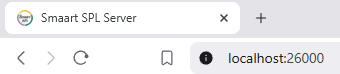
To connect to the program remotely, open a web browser on a client machine and type the IP address (or host name if applicable) of the machine running Smaart, followed by a colon (":") and the port number assigned to the program in the address bar of the browser, then connect as you would to any web site, e.g., by pressing the enter key on your keyboard.
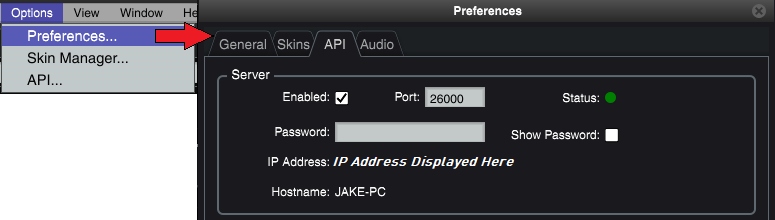
Options >Preferences > API Window in Smaart v9 SPL.
In the screenshot below, we have connected to the program from a browser on the same machine using "localhost" as the host name and the default port address of 26000.
We recommend using your web browser’s private browsing / incognito mode, as it disables scripts and plugins that can interfere with the API’s functioning. Multiple client devices can connect to a single instance of the Smaart SPL webserver, and client devices can connect multiple browser tabs or windows to multiple instances of Smaart SPL, for example, to view levels on multiple stages at a music festival.
Operation of the Webserver
The web API has access to all inputs and measurement types configured for logging in the host Smaart session and can serve any number of real-time meters along with up to thirty minutes of history for two measurement types on a selected input channel. The web API also includes a clock widget that tells you the current machine time on the computer running Smaart.
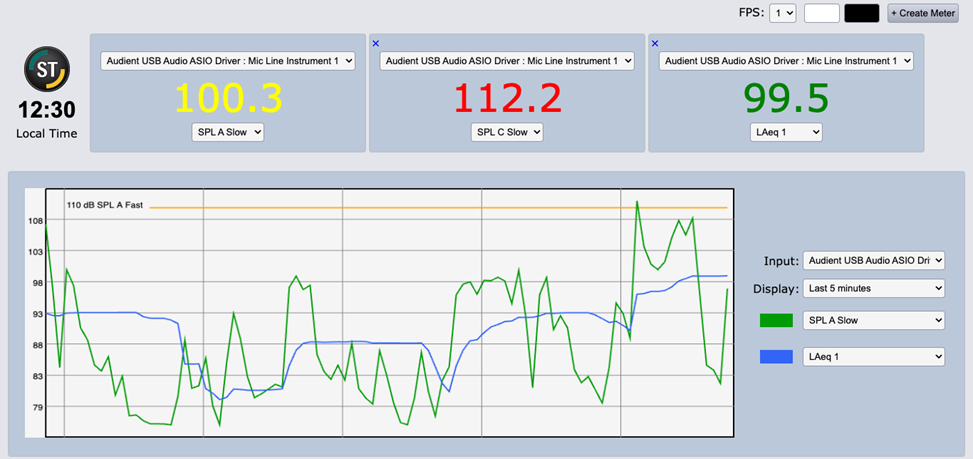
To create a meter module, click the +Create Meter button in the upper right corner of the page, then select the input and measurement type you wish to monitor using the drop-list controls on the meter. The light and dark colored buttons select the color scheme (light or dark) and the FPS selector sets the update speed for the meters, from one to eight times per second.