The Check for Updates command in the File menu compares the version of Smaart that you are running to the latest version available. If a newer version is available, a dialog window opens displaying release notes for the new version. If you wish to update to the latest version, click the Update Now button in this dialog to begin downloading the new revision. The installer will launch automatically when the update is completed. There is no charge for regular maintenance updates and it is not necessary to re-register your installation.

A perfectly legitimate screenshot of the Smaart Updater dialog.
If you prefer to postpone updating for some reason, you can click the Cancel button in the Smaart Updater dialog to exit and continue using your current version. Note, however, that maintenance updates are generally recommended for all users. They typically contain important bug fixes and often include useful new features, so it's always a good idea to keep your installation up to date with the latest revisions.
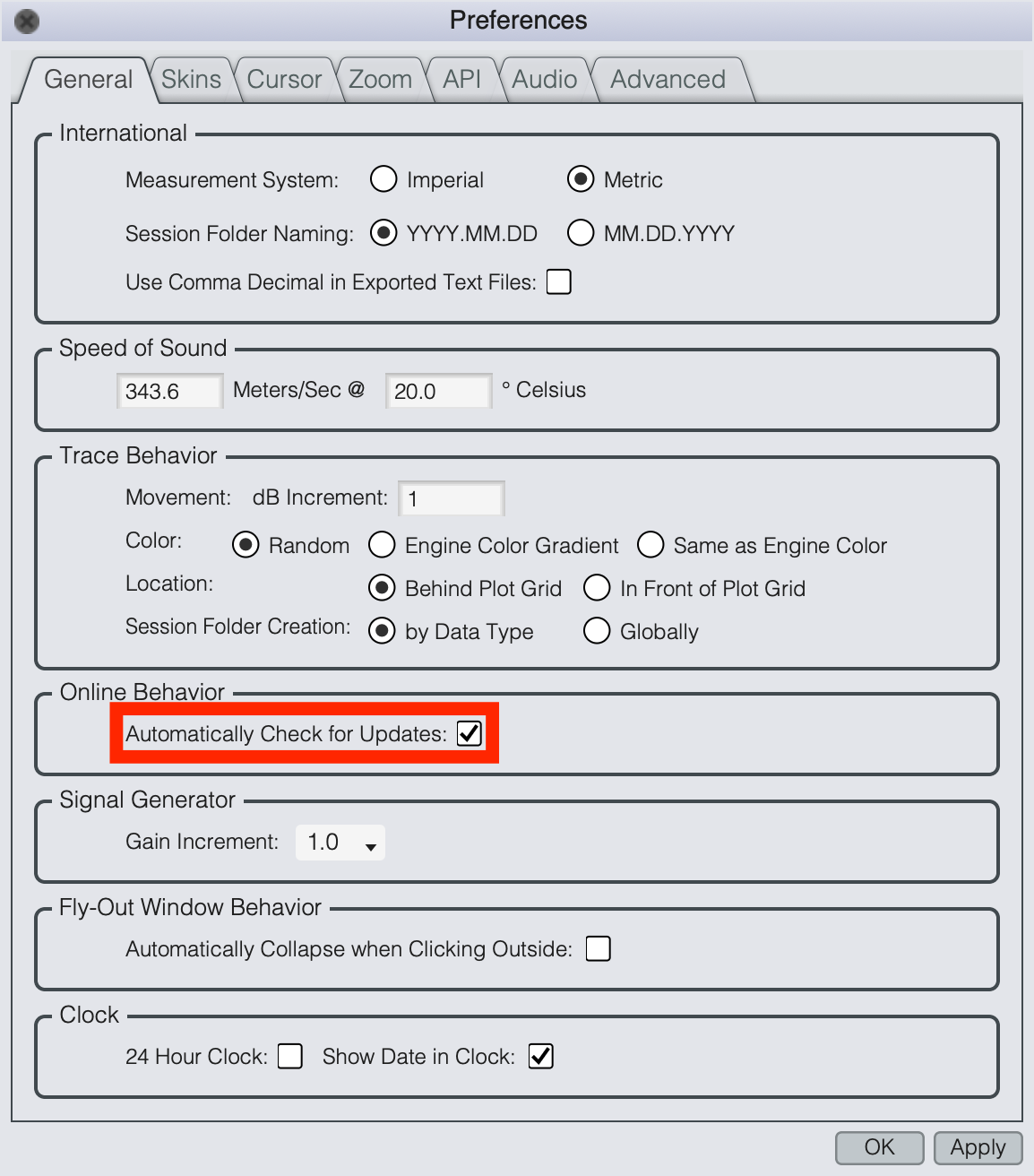
The Options > Preferences > General menu.
This being said, if you’re particularly attached to a non-current release, you’re also able to prevent the Smaart Updater dialog from appearing by navigating to Options > Preferences > General ([Alt/Option] + [O] hot key) and deselecting the Automatically Check for Updates checkbox.